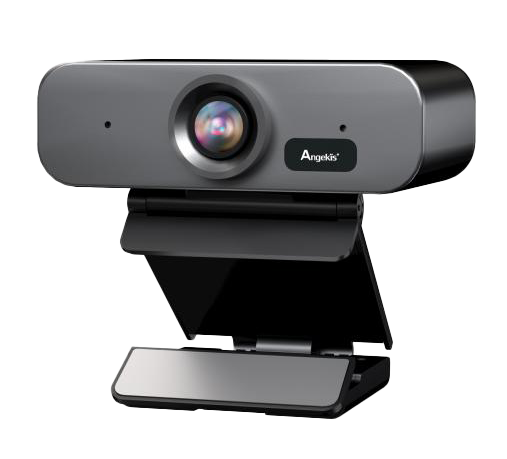
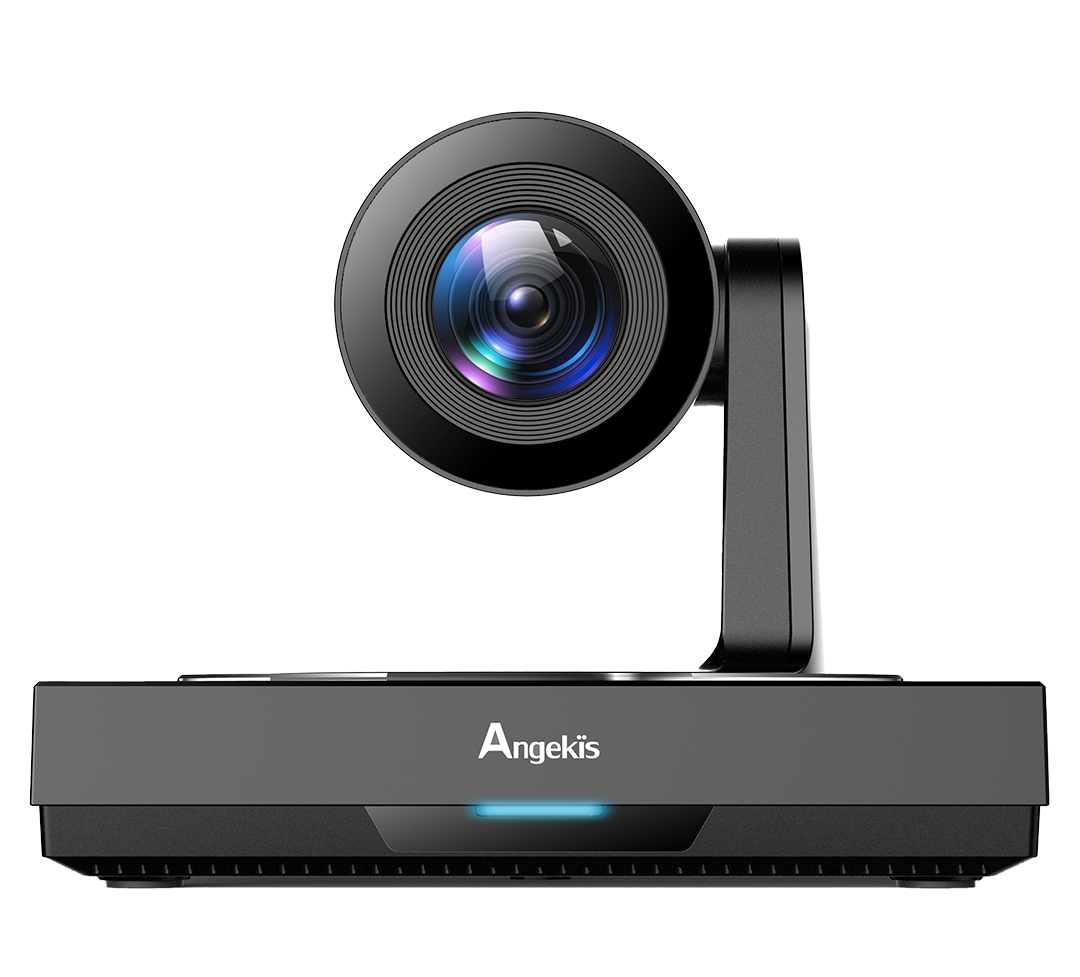
Blade VS+
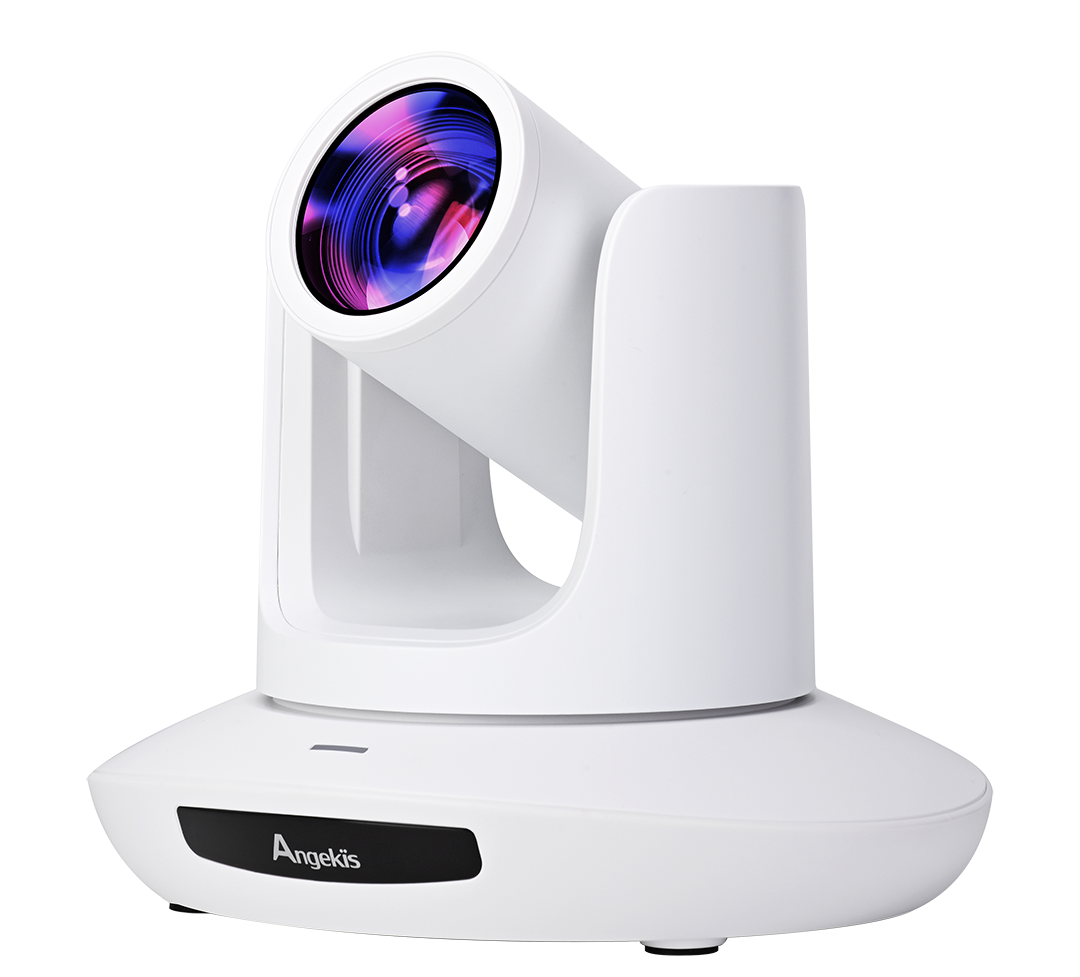
Saber 4K
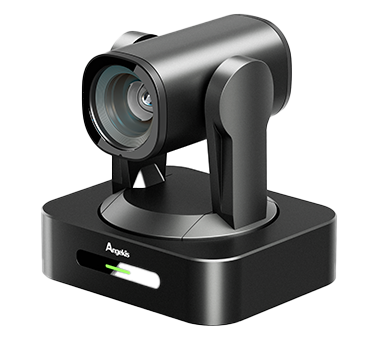
Saber X
Saber AT
Saber 4K+ NDI®
Saber IP20X NDI®
Saber IP20X
Saber 4K+
Saber Light
Saber U20
Saber Plus
Blade 4K
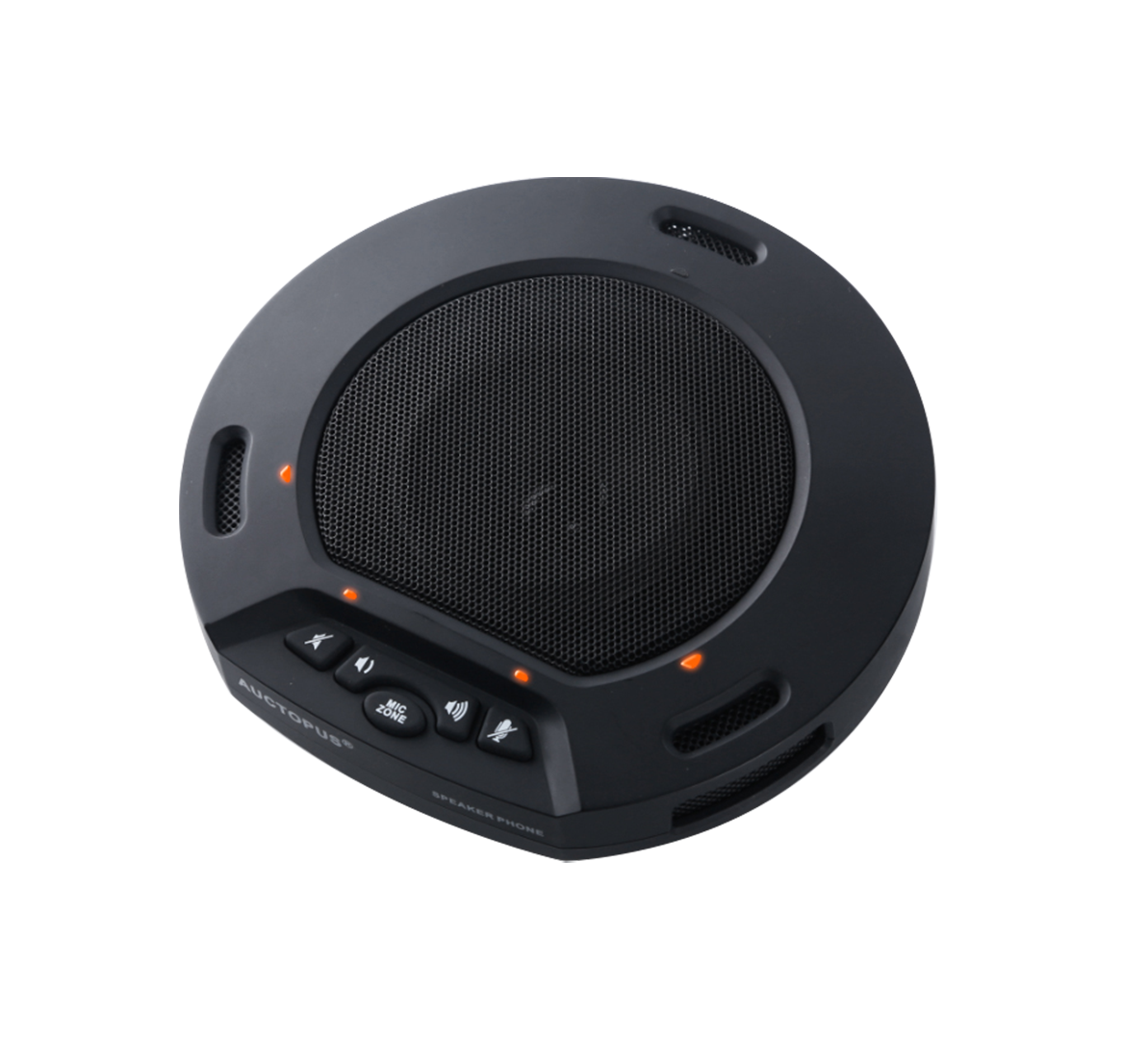
Cleartalk Wired ASP-05
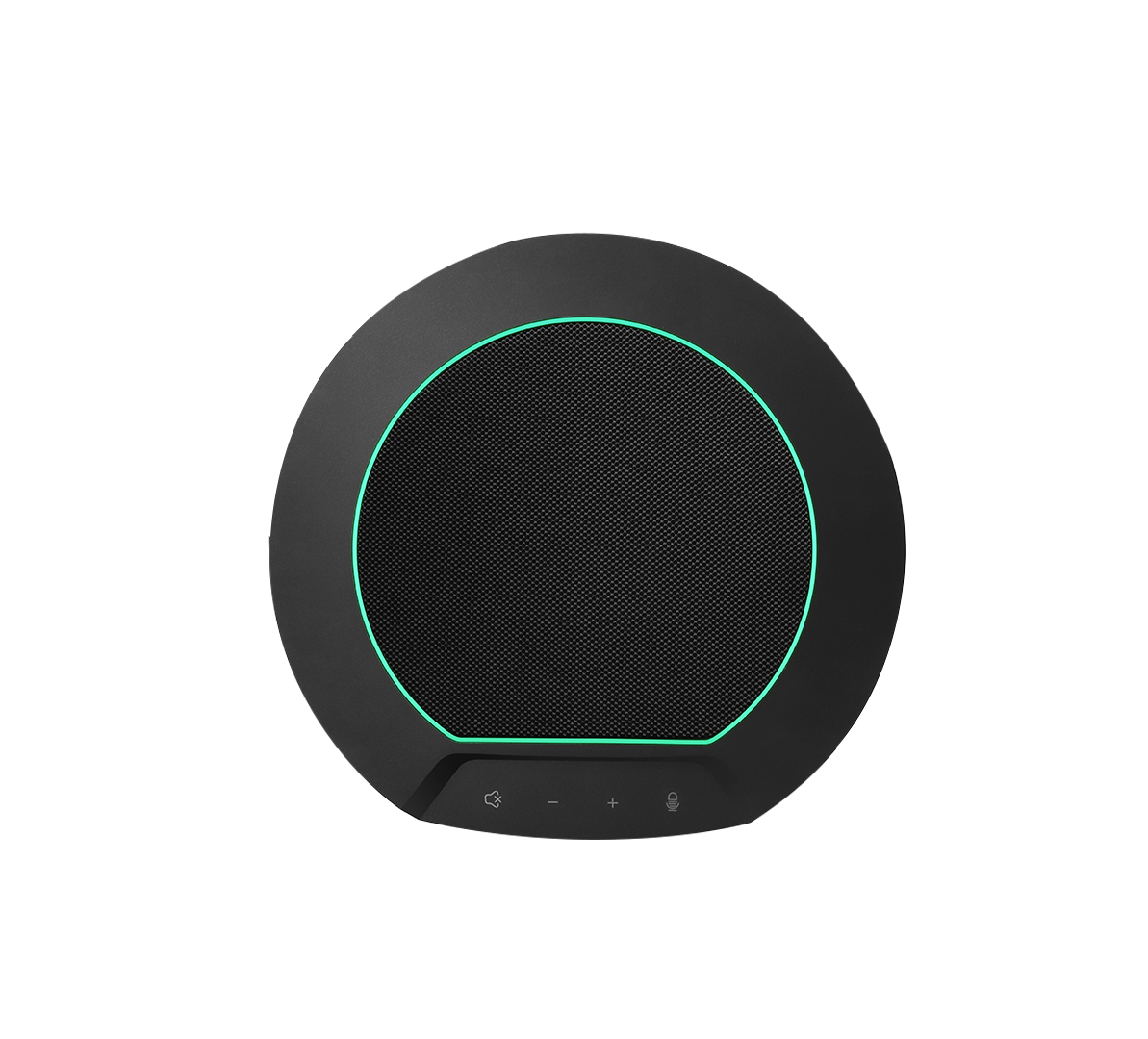
Cleartalk HD ASP-10
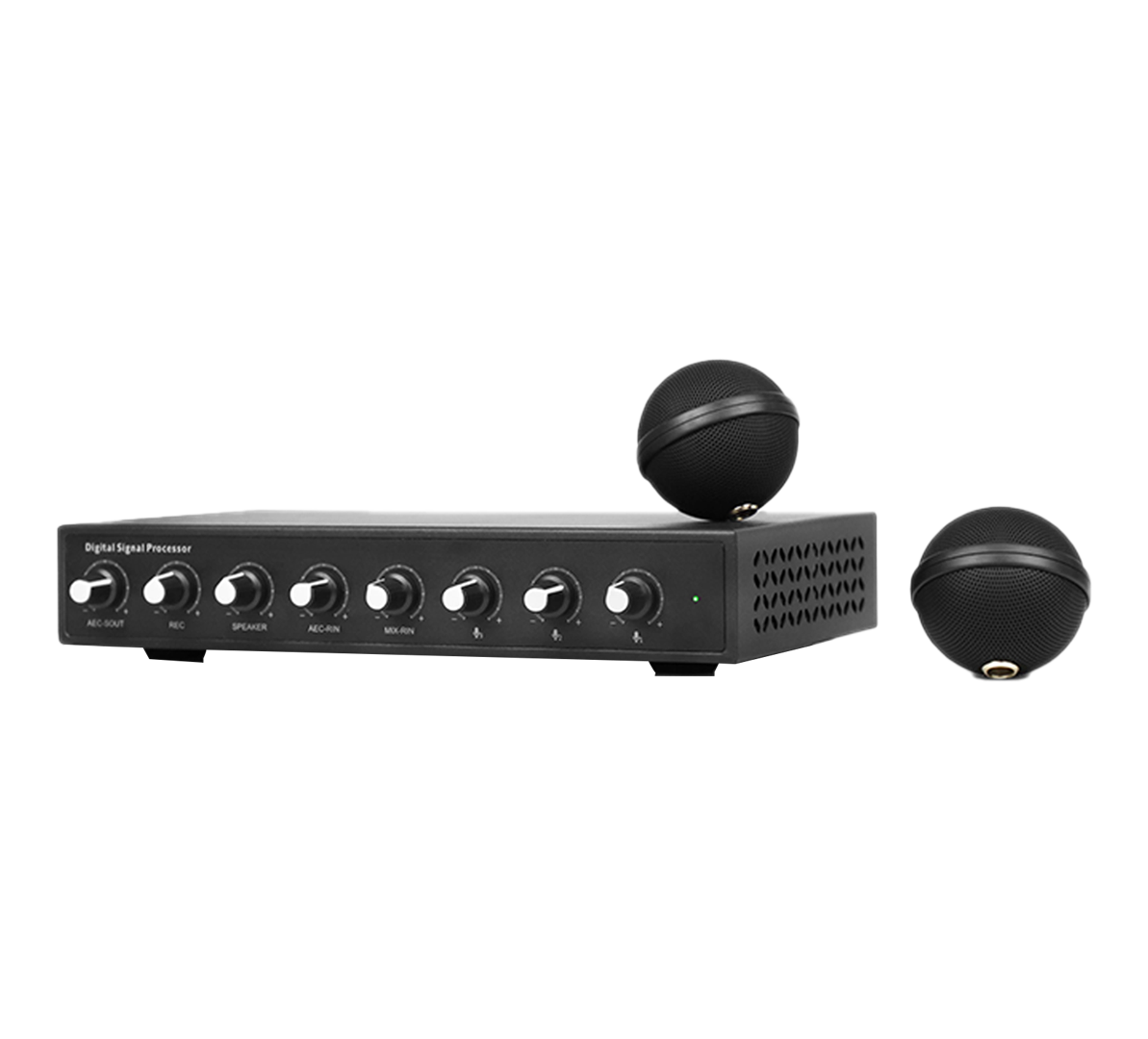
Ceiling Mic Pro ASP-C-01
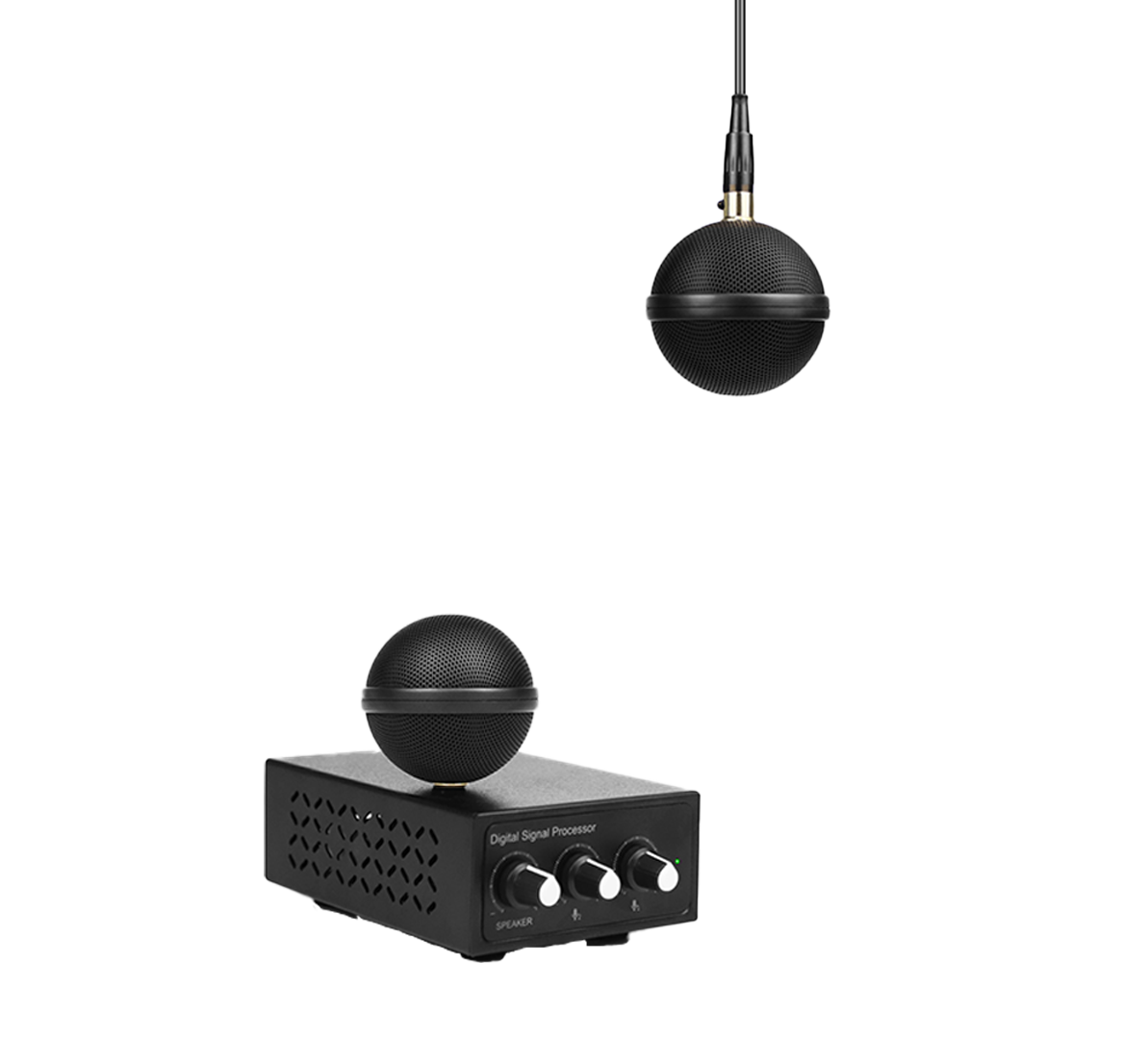
Ceiling Mic Pro ASP-C-02
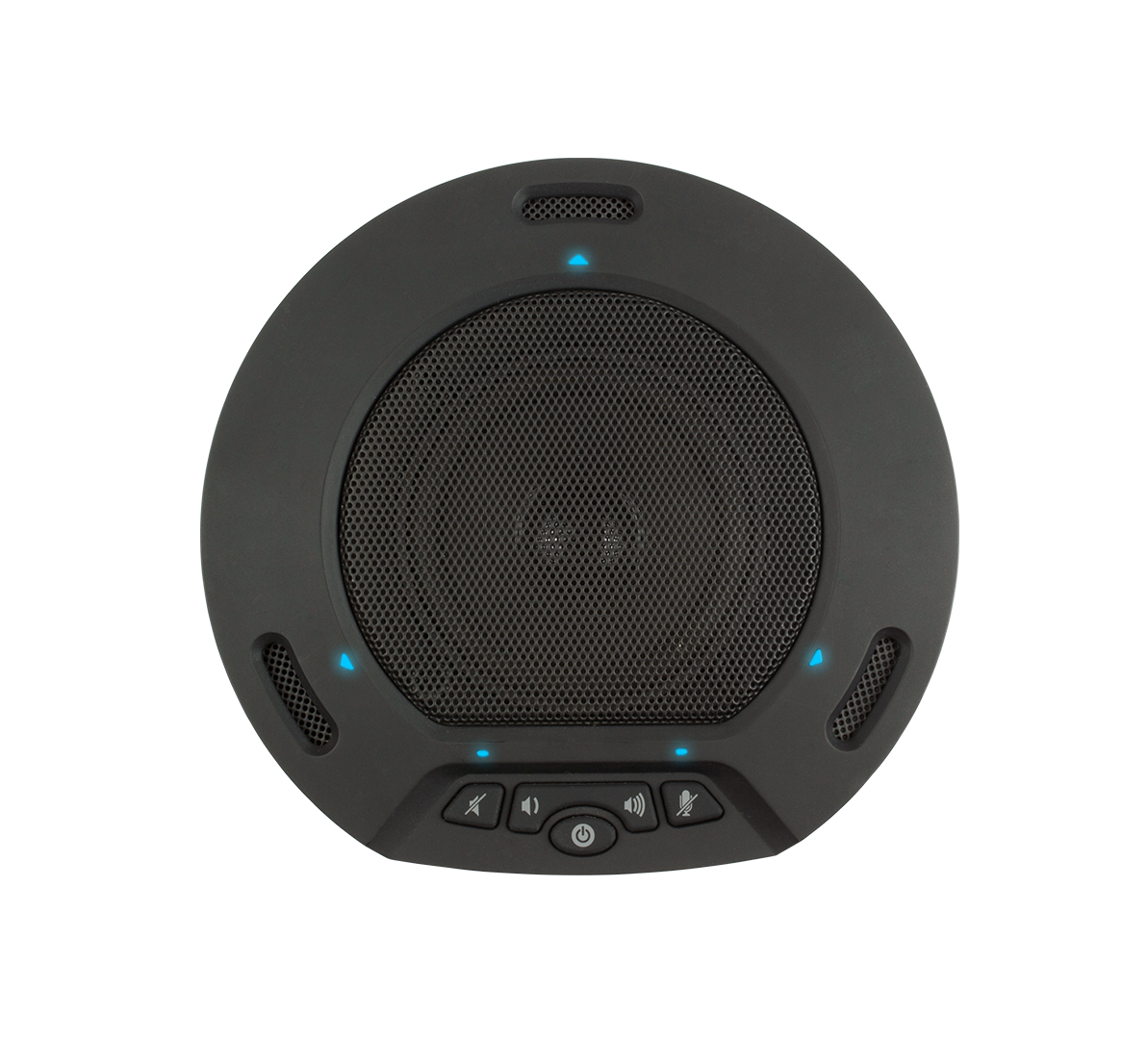
Cleartalk Wireless ASP-04
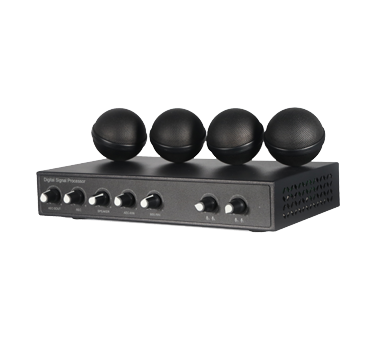
Ceiling Mic QS ASP-C-04
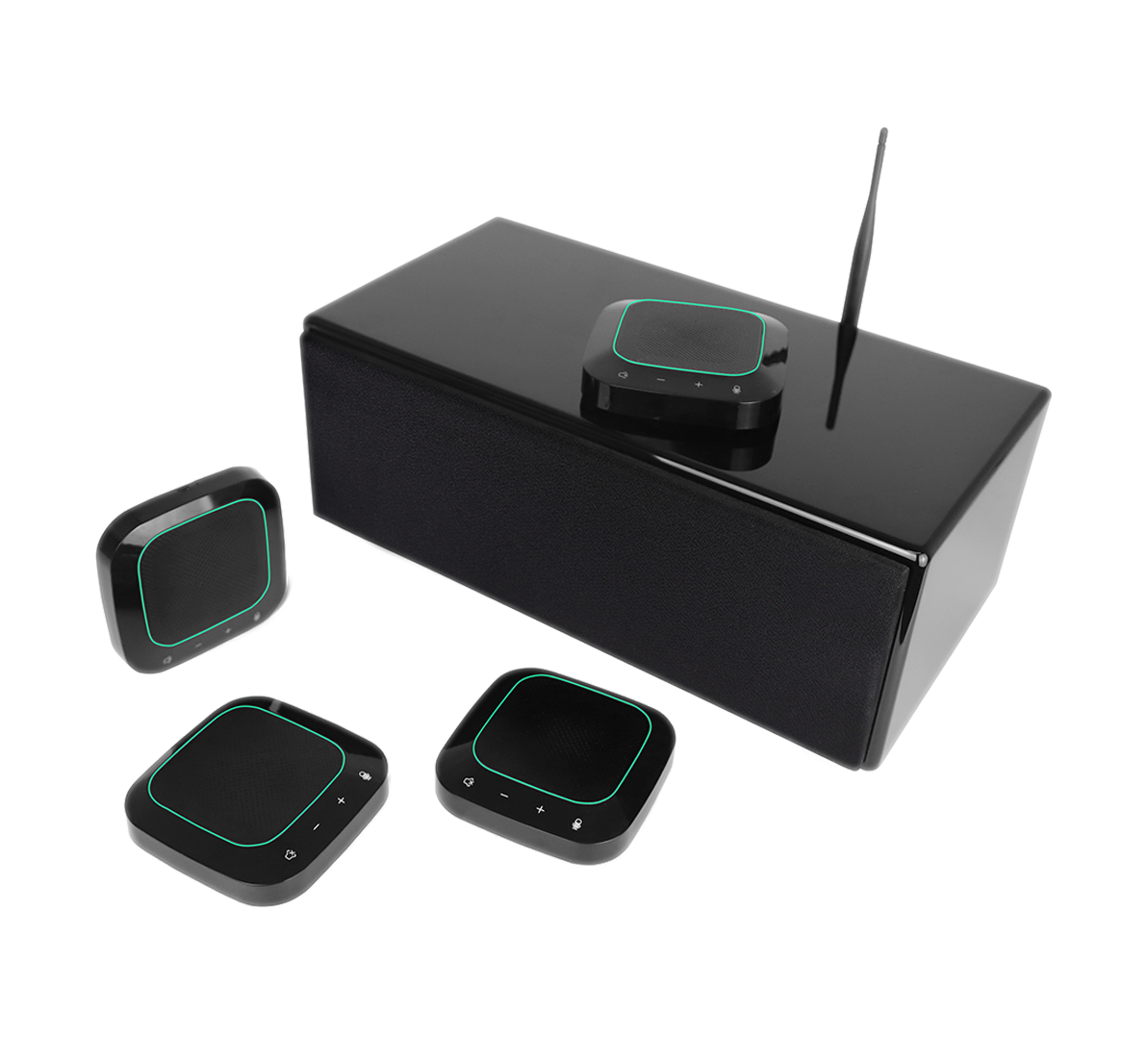
Cleartalk DC 4 Units ASP-04D-4S
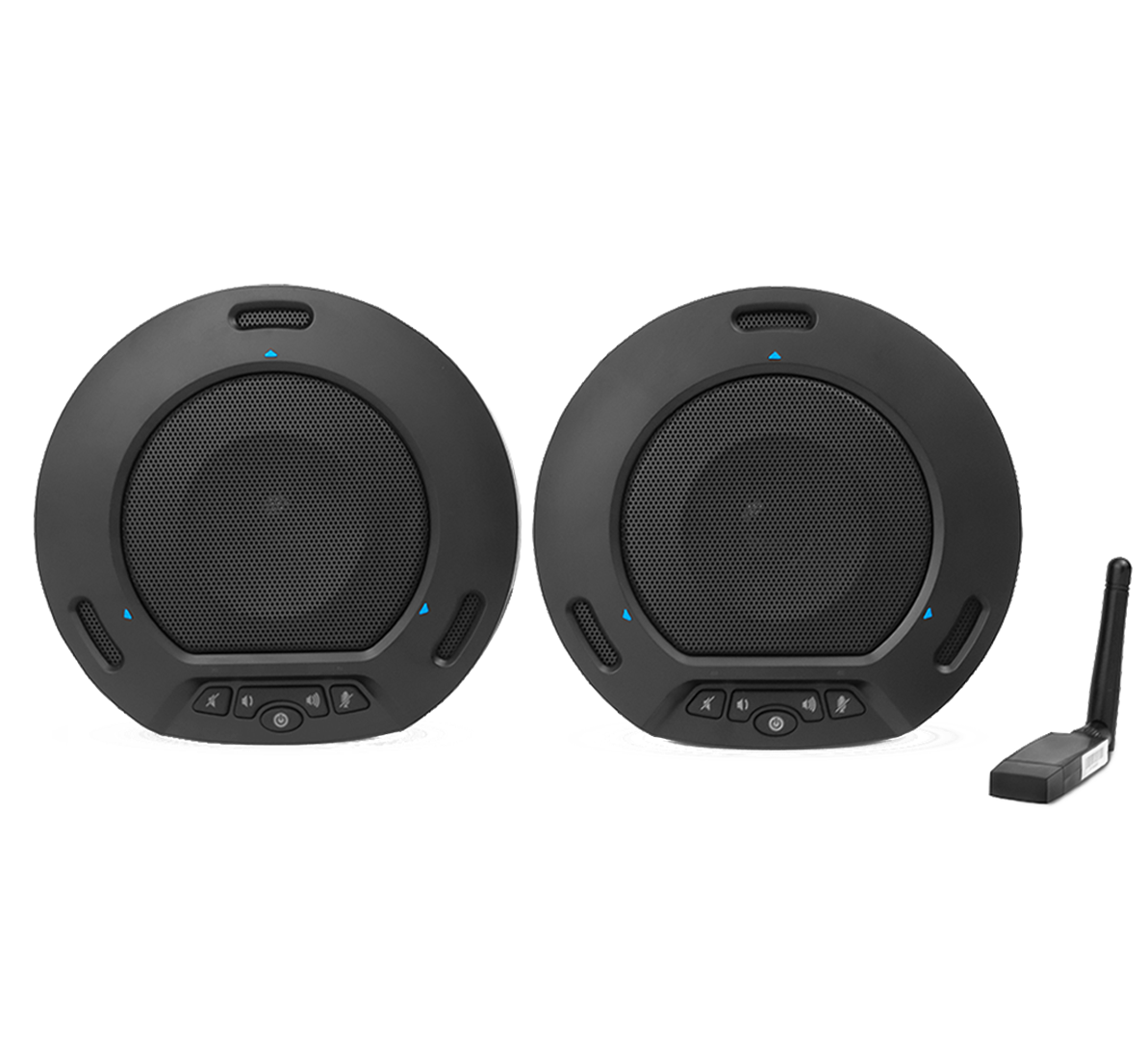
Cleartalk DC 2 units ASP-04D-2
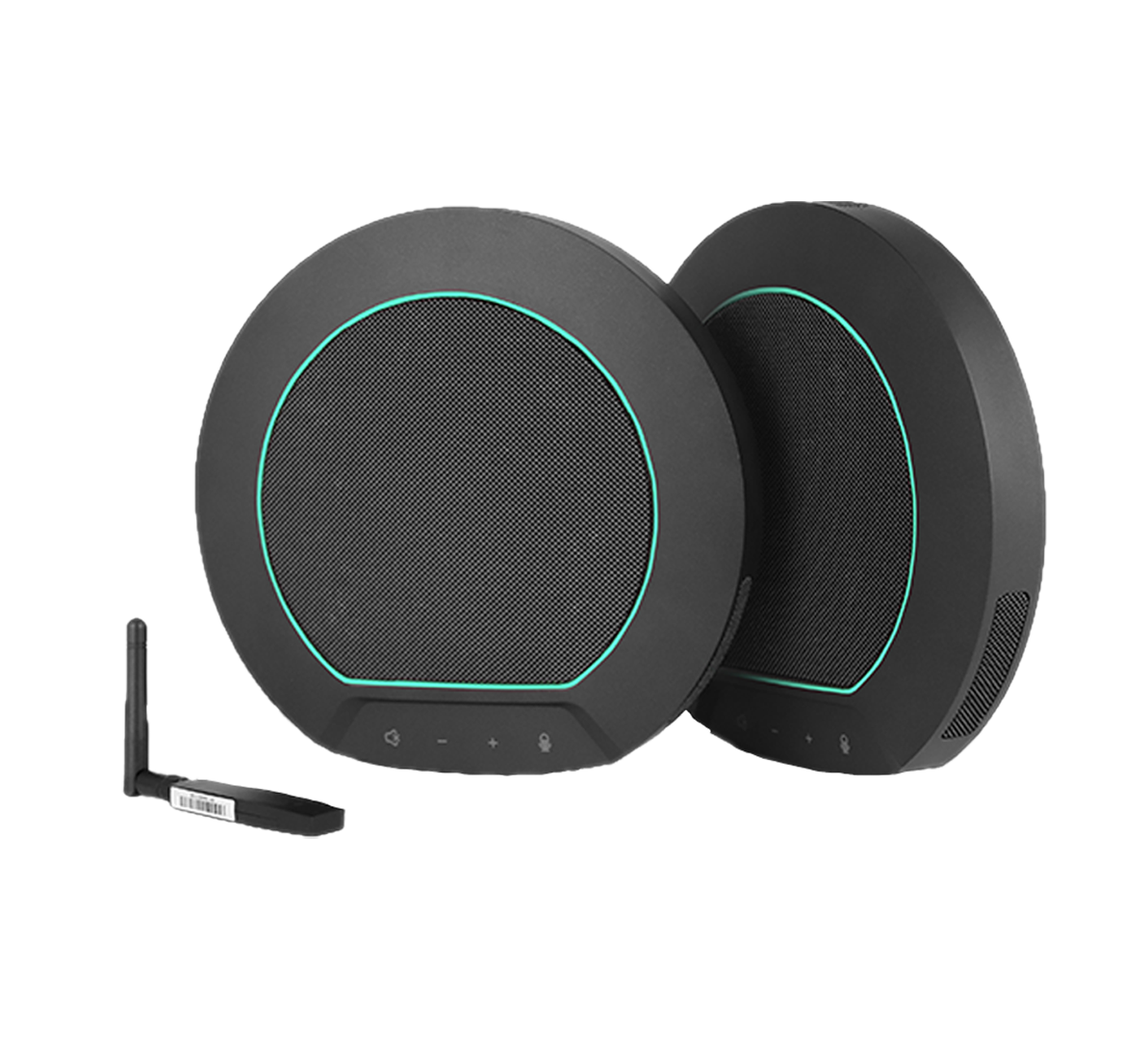
Cleartalk HD DC ASP-10D-2

Cleartalk Anchor ASP-06
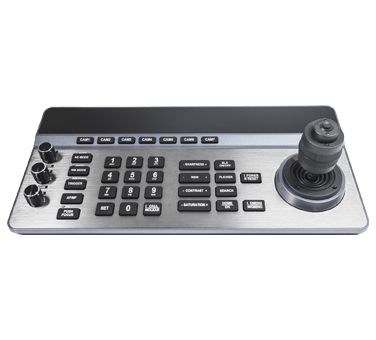
Mission Control Keyboard
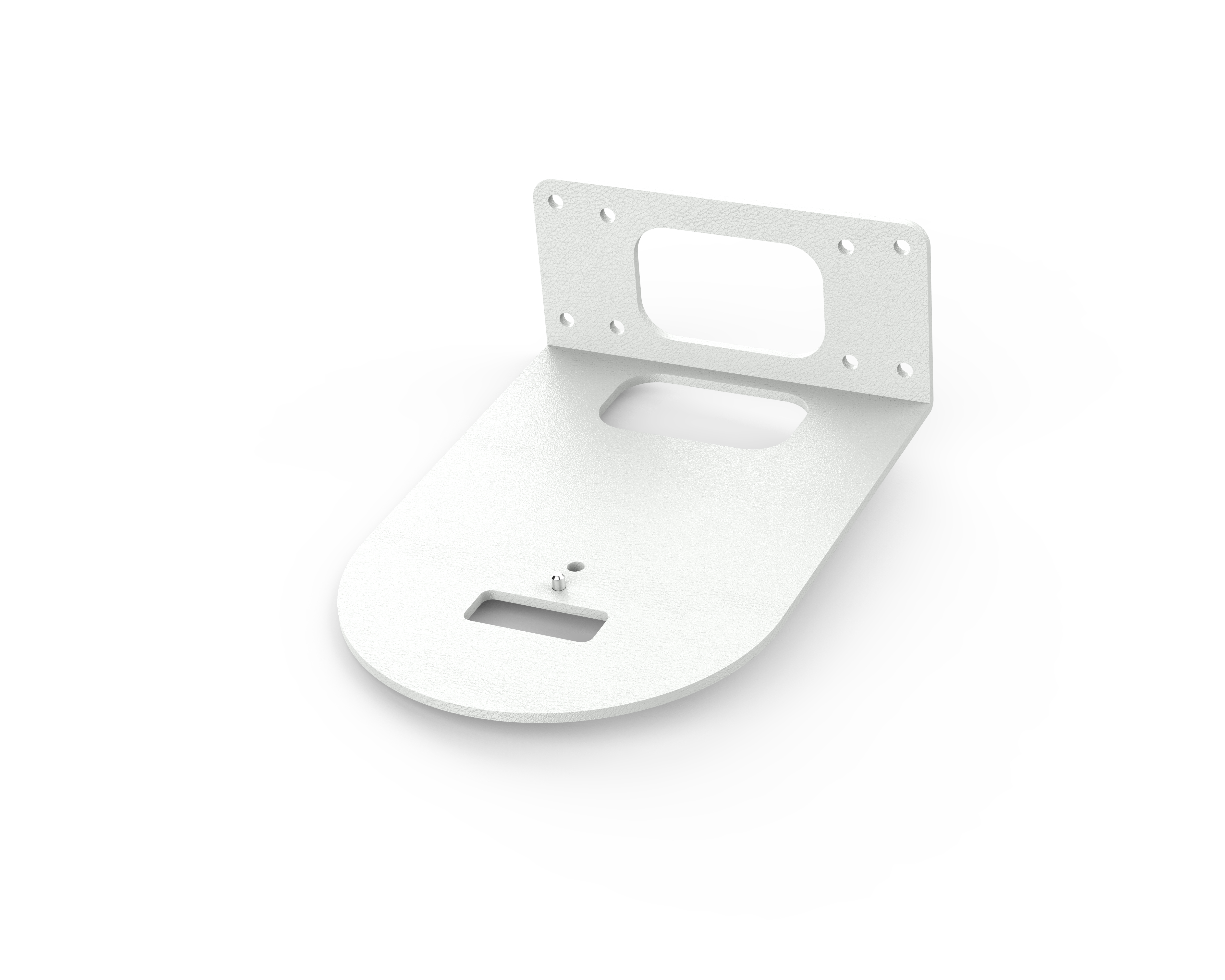
Wall Bracket (White)
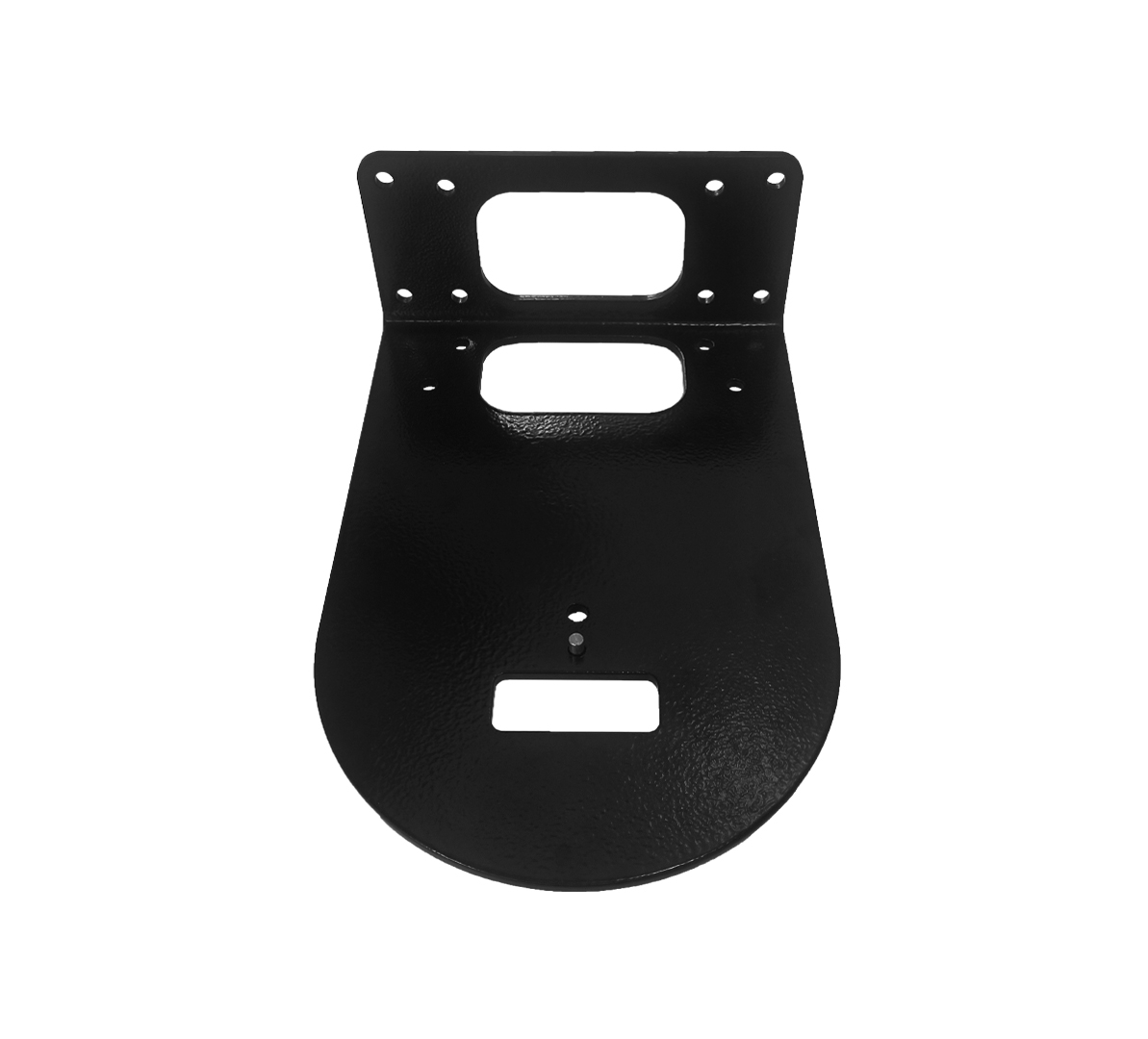
Wall Bracket (Black)
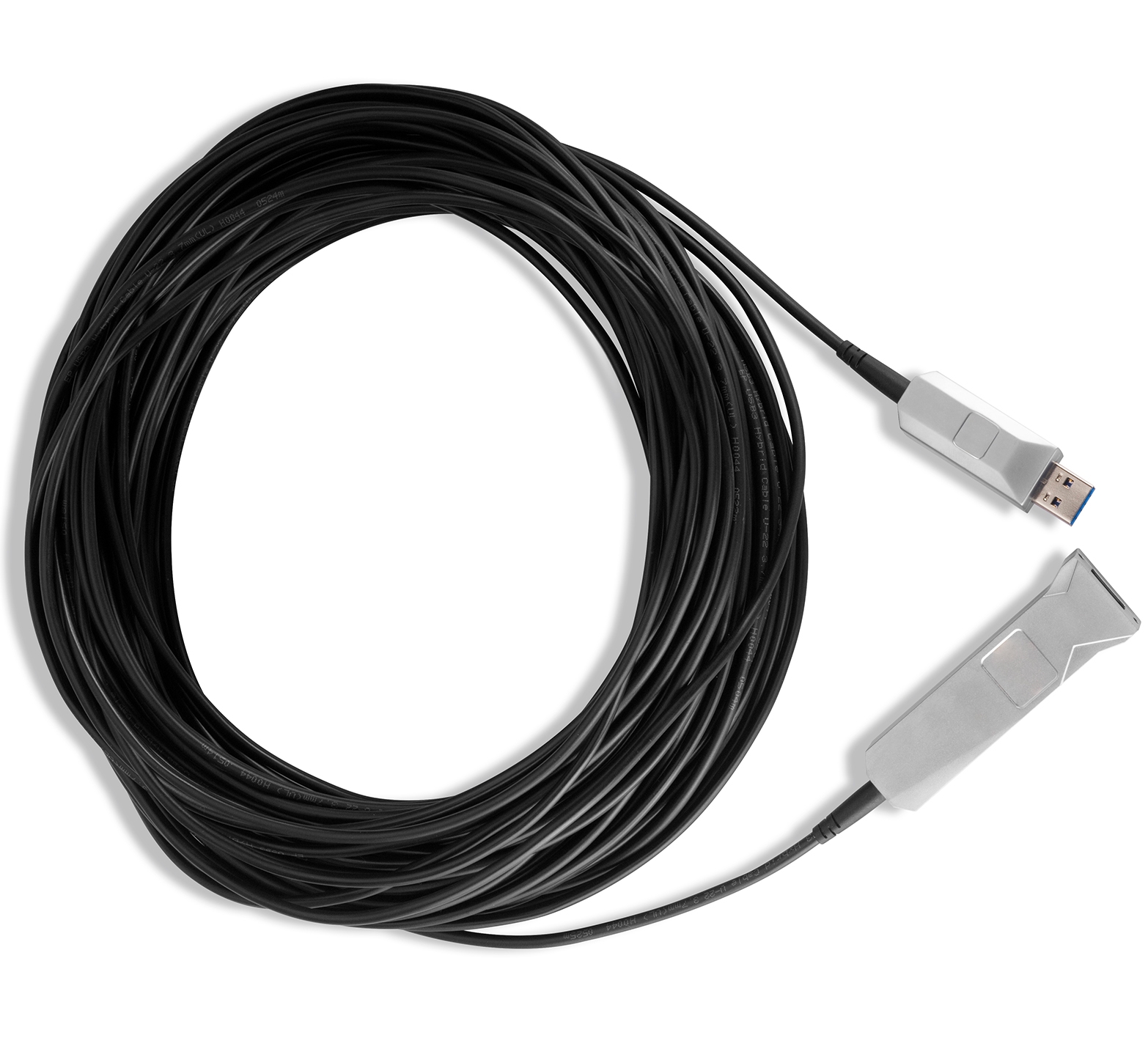
USB3.0 Extend Cable 10-30M
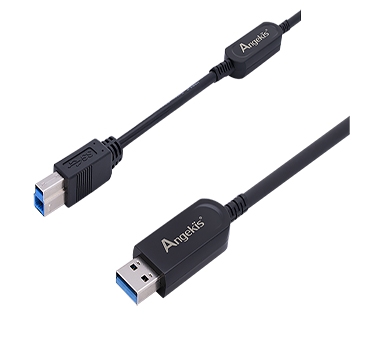
USB3.0 A male to B male Active Optical Cable
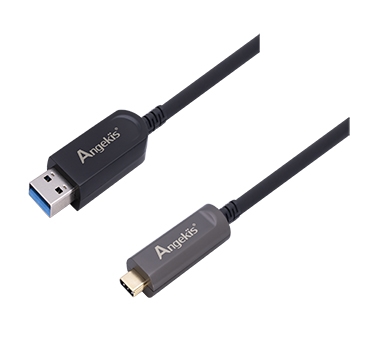
USB3.1 Type A-C Active Optical Cable
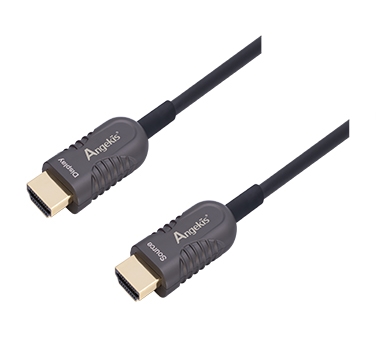
HDMI 2.0 Cable
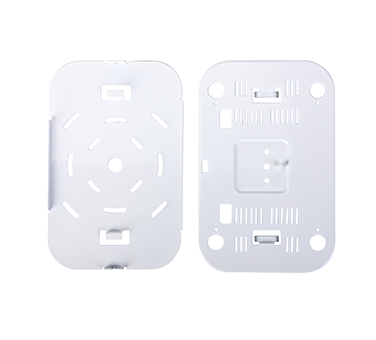
Ceiling Mount (White)
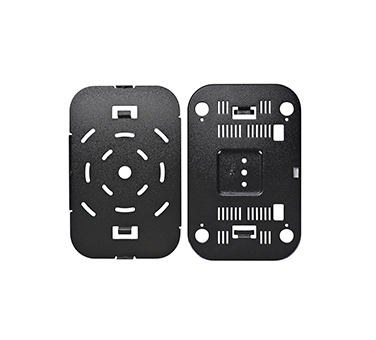
Ceiling Mount (Black)
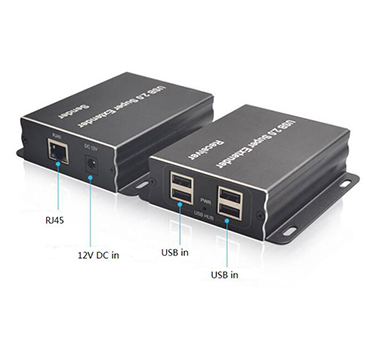
USB2.0 Extender
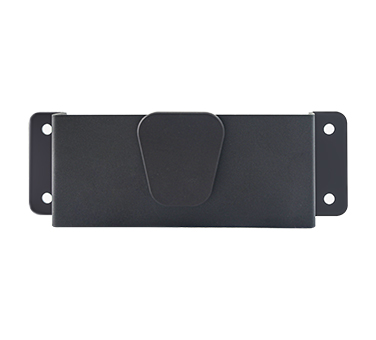
One Touch Wall Bracket (Black)
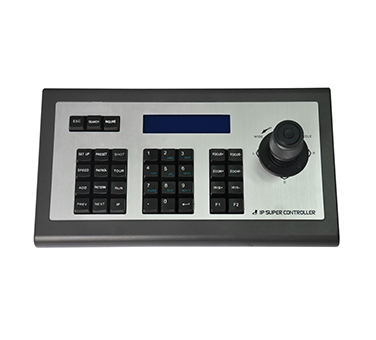
IP Controller
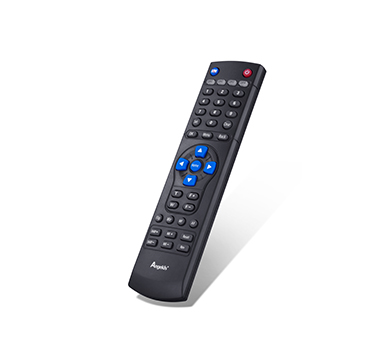
Remote Control for Saber and Blade
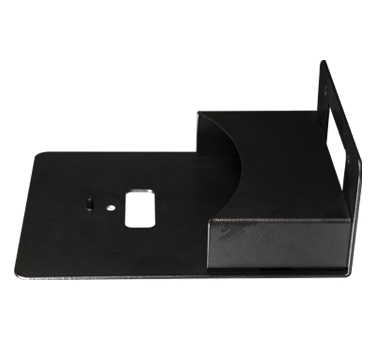
Cord Cover Wall Bracket (Black)

Remote Control for One Touch
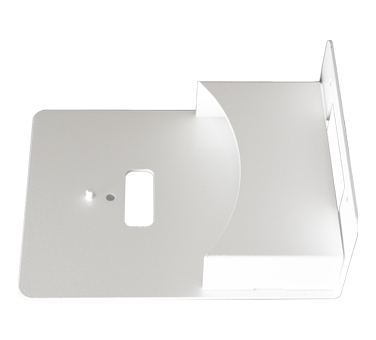
Cord Cover Wall Bracket White)
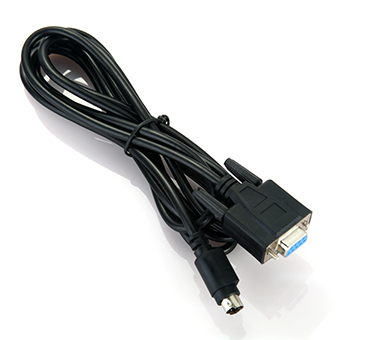
RS232 Cable
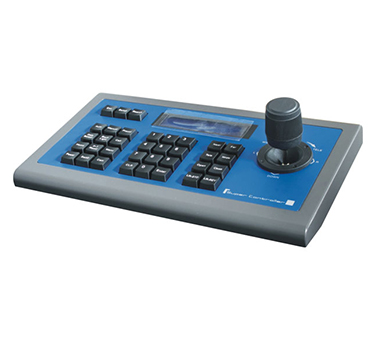
RS232 Joystick
Power Adapter

Blogs
How To Use Far End Camera Control for PTZ Cameras with Zoom
How To Use Far End Camera Control for PTZ Cameras with Zoom
In the previous Angekis Technology Blog Post, we explained what Far End Camera Control (FECC) is, and in this post we’re going to explain exactly how you can use it when making Zoom video calls.
This feature is quite useful and simple to set up. All you need to do is enable the permissions, and then join a meeting!
Setting Up FECC Permissions in Zoom
First, we need to enable permissions in Zoom’s settings. Because FECC allows a remote user to control your equipment over the internet, it naturally requires a special level of protection.
To access the Settings, open Zoom:
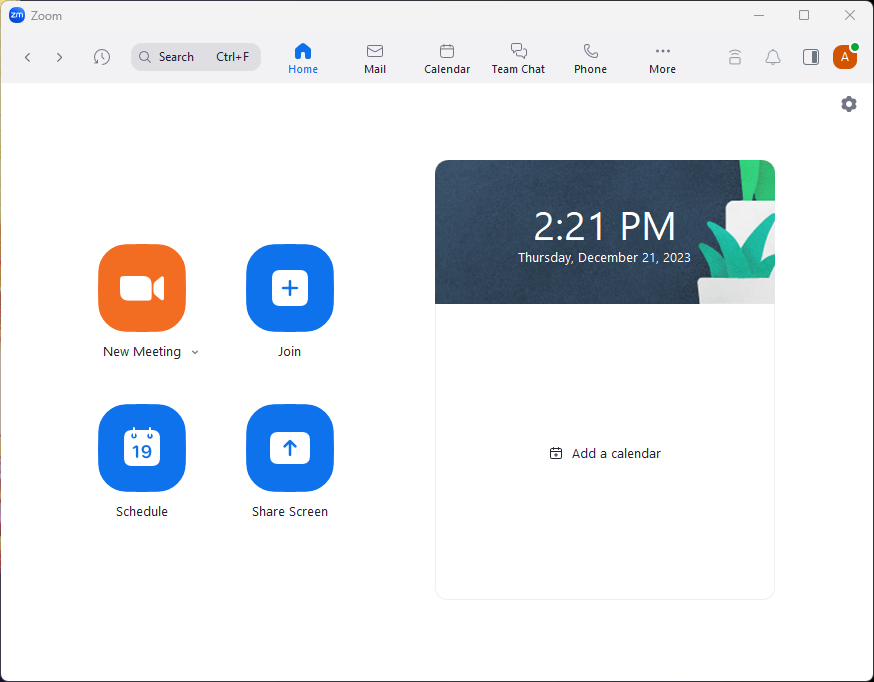
Then open settings:
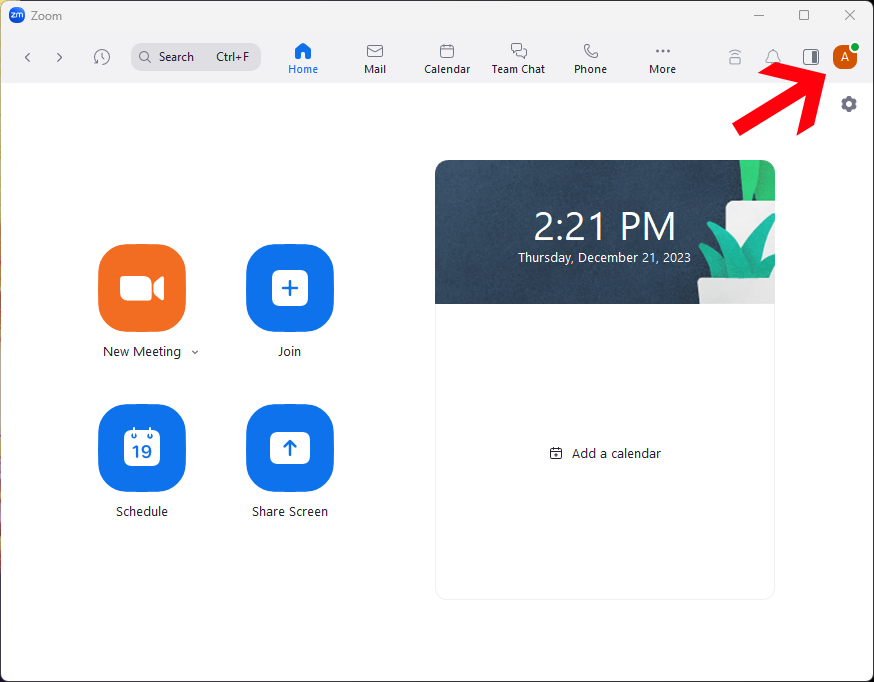
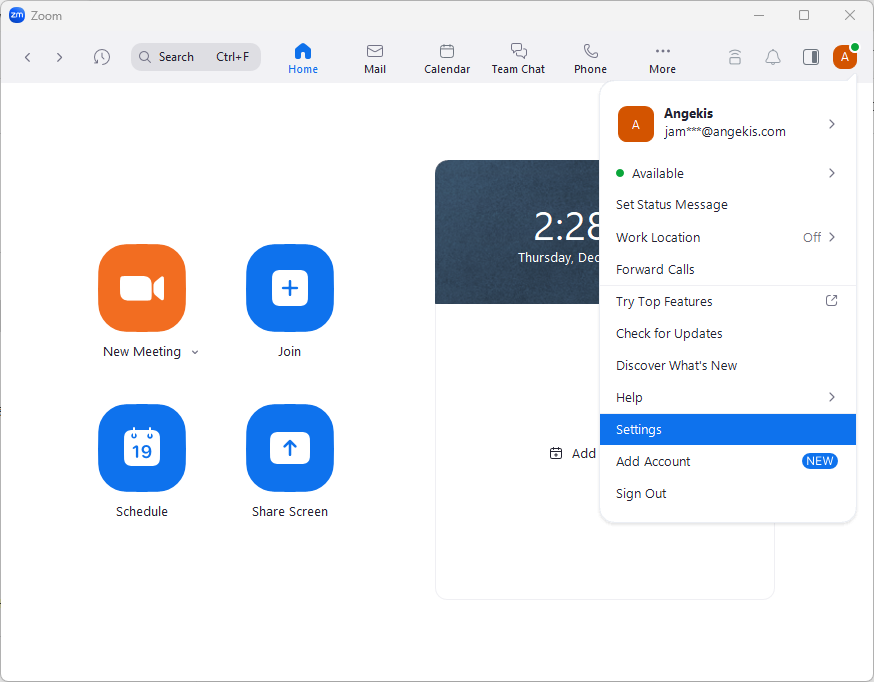
Here in Settings you’ll have to View More Settings:
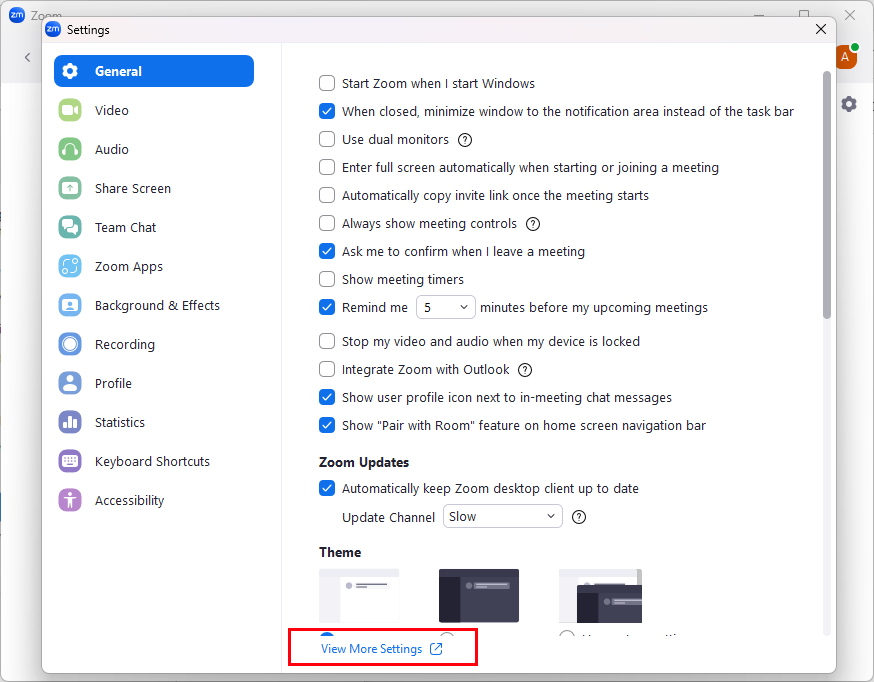
View More Settings will open your web browser. Note: You may have to log in before you can access these advanced controls. You can also access these advanced Settings without opening the Zoom app, and instead logging into https://zoom.us/signin directly.
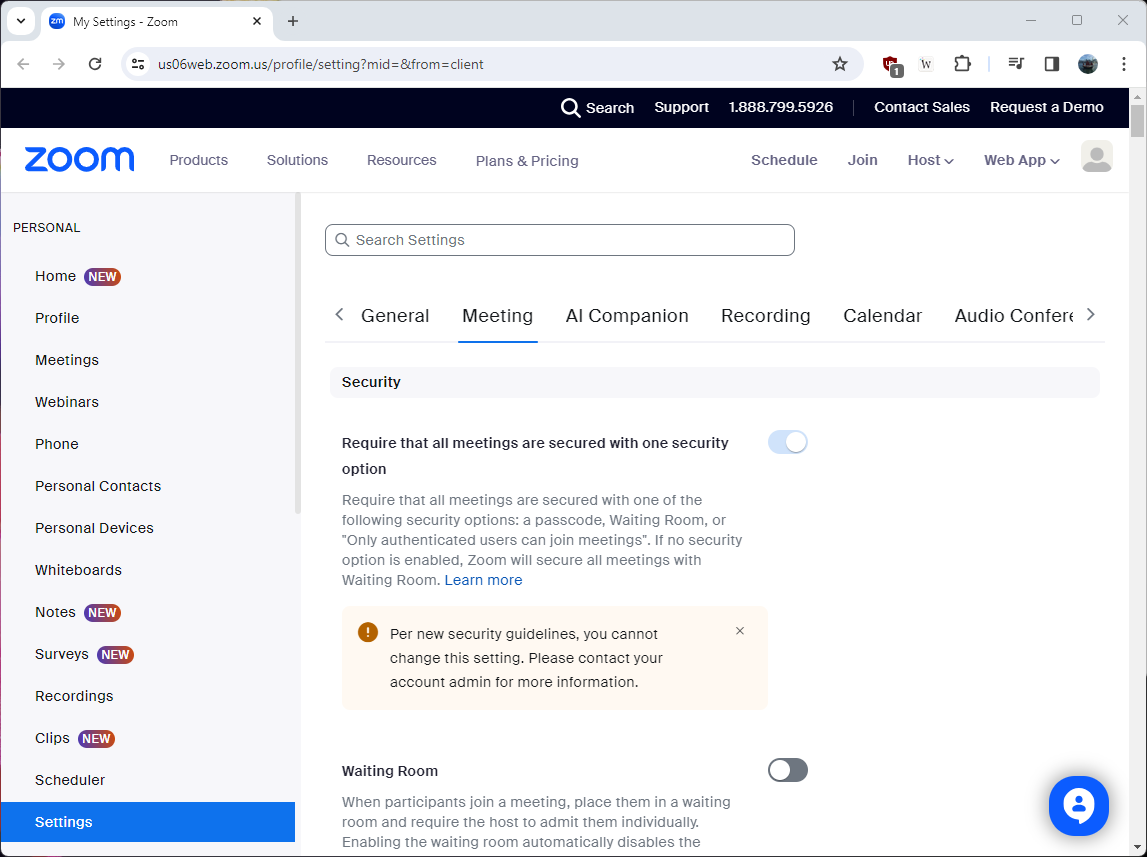
You need to scroll down pretty far on this page, or you can press CTRL+F and type in “Far”, which will bring you to the two relevant settings:
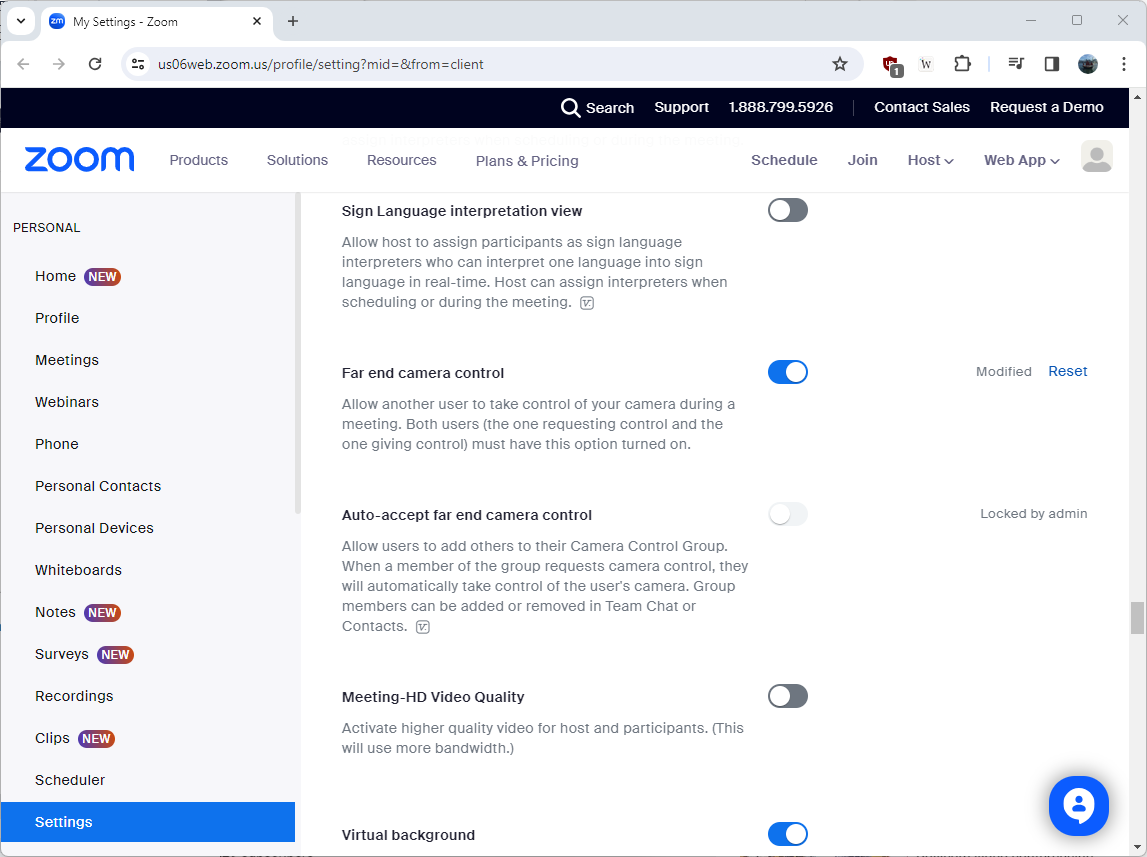
“Far end camera control” allows your meeting participants on Zoom to control your PTZ Camera. Note that for you to control their camera, they must likewise enable this option on their computer.
Normally, when someone requests to control your camera, you’ll receive a prompt to accept or deny the request. However, if you want to automatically accept incoming requests, you can set this up right here.
“Auto-accept far end camera control” will allow meeting participants to control your PTZ Camera without you having to click accept. This can be useful if you’re meeting only with people you trust, and if they will need to take over camera control semi-regularly.
Using FECC in Zoom
Once inside our Zoom Meeting, we can right click on another attendee’s video and find a couple of options: Chat, Pin, and if activated, Request Camera Control.
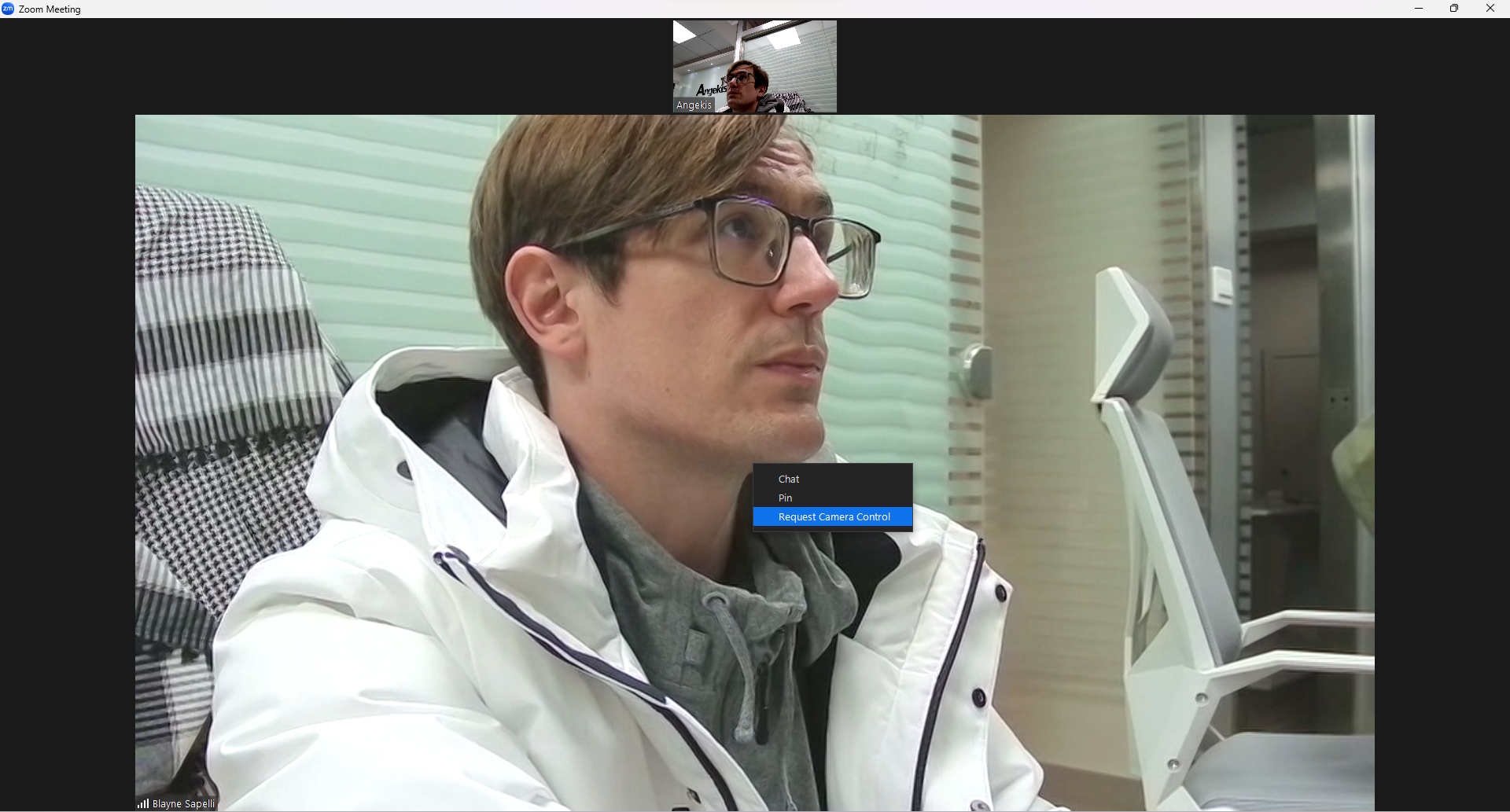
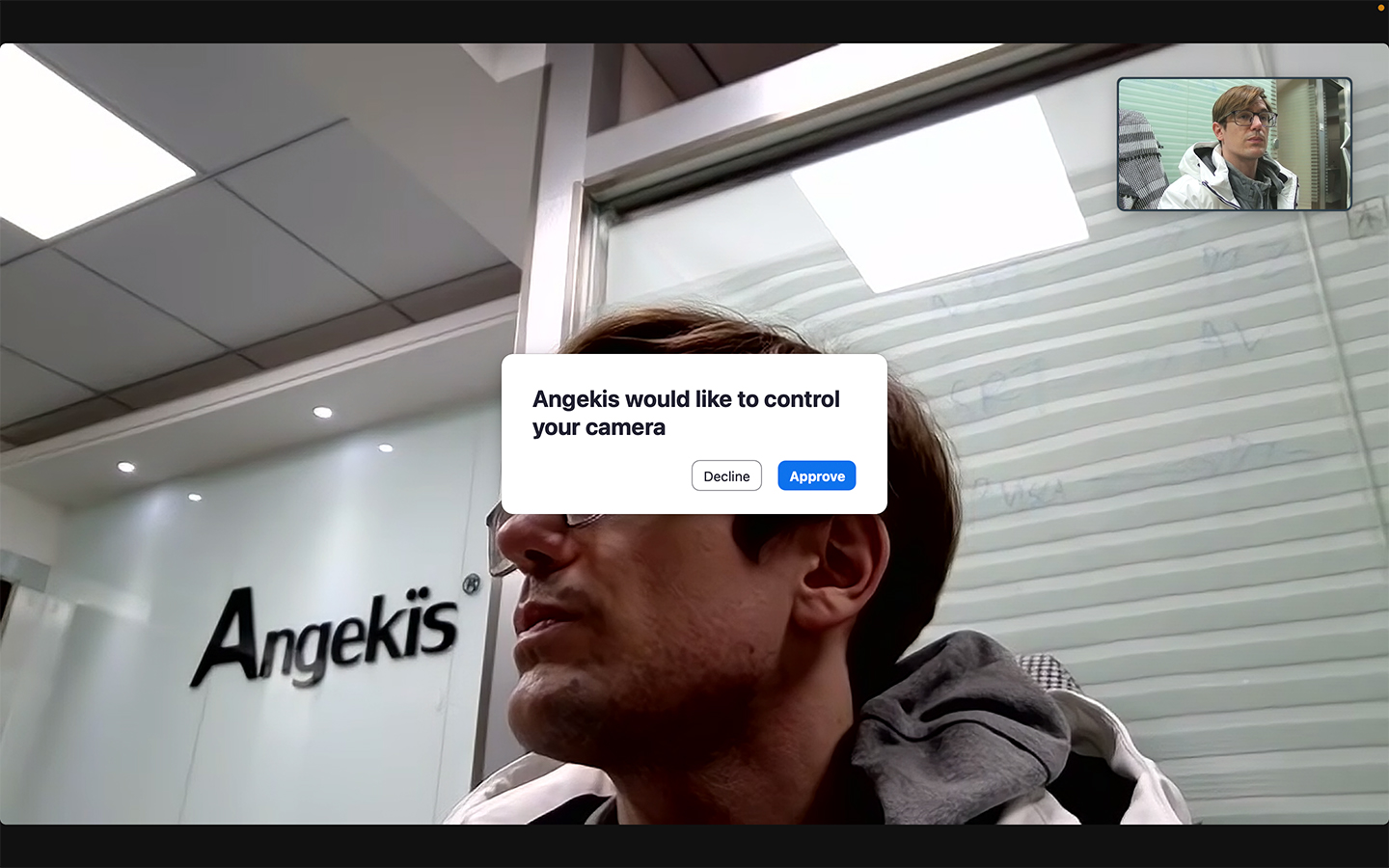
Requesting Camera Control will either automatically engage the FECC function (if auto-accept is on), or it will launch a dialogue prompt on the recipient’s computer:
Here the recipient can approve or deny the request for the other user to control their PTZ Camera.
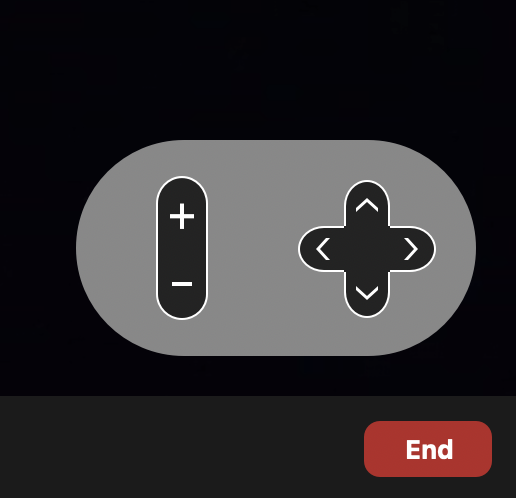
Once the request is approved, the PTZ Controls: Zoom In, Zoom Out, and Move Up, Down, Left, and Right will appear in the bottom right of the controlled camera window.